Features

Al-Quran

This isn’t just recitation — it’s a complete system for understanding and learning the Quran.

×

Launching the App and Accessing Al-Quran

After Opening the Eiman app. Tap on the ‘Al-Quran’ icon in the Quick
Access menu to begin.
When you open Al-Quran, you’ll see:
Top Section:
3 Tabs: Quran | Surah | Parah (switch between views)
Search Bar: Find any Surah or keyword instantly
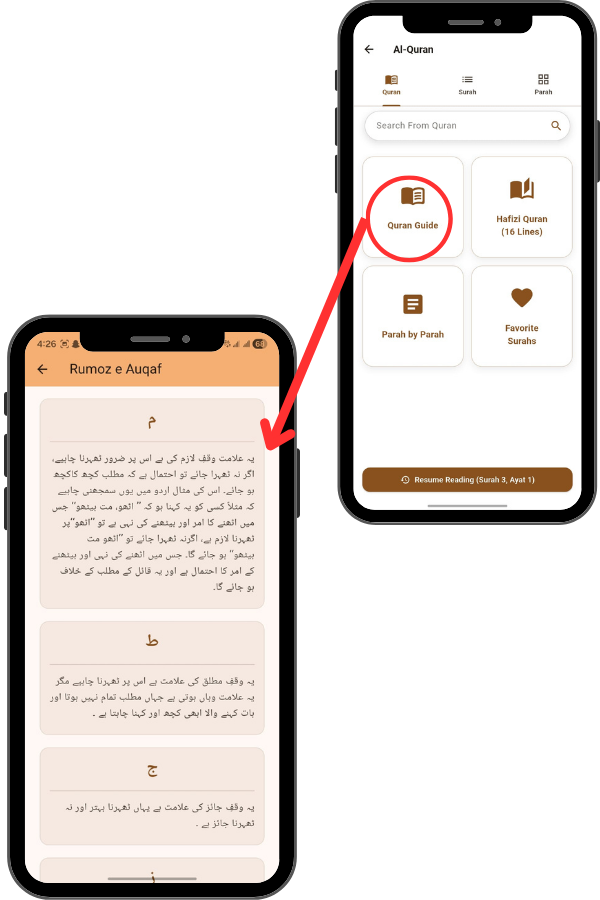
Four Main Options:
1. Quran Guide – Learn Quran symbols & Tajweed rules
2. Hafizi Quran (16 Lines) – Standard Mushaf layout for memorization
3. Parah by Parah – Read by 30 Juz sections with Tajweed colors
4. Favorite Surahs – Quick access to your bookmarked chapters

3
4

Exploring the Quran Guide

Tap on “Quran Guide“. Scroll through the list of symbols.
This section is titled ‘Rumoz e Auqaf’. It provides a detailed explanation
of the symbols used in the Quran for pausing, stopping, and continuing
recitation, ensuring you read with proper Tajweed.

Reading the Hafizi Quran

Go back and tap “Hafizi Quran (16 Lines)“. Wait
for it to load.
This opens a PDF viewer of the standard 16-line
Mushaf. This layout is identical to physical copies
used for memorization, allowing you to swipe
through pages just like a real book.

5
6

Parah by Parah View

Go back and Tap on “Parah by Parah”. Here, the Quran is
divided into 30 sections. If you tap on a Parah, like Parah 2, it
opens a color-coded text view which helps in identifying
Tajweed rules. You can also tap the heart icon to save a
Parah to your favorites.

Managing Favorite Surahs

Go back to the main Al-Quran menu. Tap “Favorite Surahs”
This gives you a quick list of your bookmarked Surahs. Tapping
one, like Surah Rahman, takes you straight to the text.

7
8

Adding Surahs to Daily Azkar

Go back. Tap the “Surah” tab at the top. Tap the heart icon next
to Surah 1 (Al-Baqara). Select “Evening routine.
You can now integrate your reading with your daily routine. Tap
the heart icon next to a Surah, and a menu will pop up allowing
you to add it to your Morning or Evening Azkar routine.

Customizing Reading Settings

1.Jump To (Left Arrow/Navigation Icon <):
This highlight the verses, when you play recitation. You can
usually jump to a specific Surah number, Ayah number, or Page
number without scrolling manually.
2.Auto Scroll (Play/Circle Icon ▶):
This feature automatically scrolls the text down for you. It is
useful when you are listening to the recitation and want the text
to move along with the audio automatically so you can follow
along hands-free.
3.Play (Triangle Icon ▶):
This is the main audio control. Tapping it starts or pauses the
recitation of the Quran. Since “Word-by-word translation” is
selected in your settings, it might play the Urdu explanation
audio.
4.Translations (XA Icon):
This icon manages the text translations. Tapping it likely opens a
menu where you can select which translations to display (e.g.,
English, Urdu, Hindi) or turn them on/off to declutter the screen.

9
10

Keyword Search

Go back to the main Al-Quran menu, You can type any word or topic you are looking for. In the image, the user has typed “نماز” (Namaz/Prayer) in Urdu.

Multilingual Support:

The search is smart and supports multiple languages.

You can search using:

English:

(e.g., typing “Prayer” or “Namaz”) Urdu: (e.g., typing “نماز(” Arabic: (Typing the Arabic root word)

Switching to Dark Mode

Back to the Home Screen > Top Right Corner.
You might want to read at night without straining your eyes.
Look at the top right corner next to the notification bell. You’ll
see a Sun icon. Tap this to toggle Dark Mode. As you can
see, the entire app background turns dark, making it
comfortable for night reading and saving battery life.”

11