Features

Dua

Find authentic duas for every need with Eiman — from daily routines to life’s biggest challenges. Get guidance for every moment of your life, helping you stay connected with your faith wherever you are.

×

Accessing the Dua Module

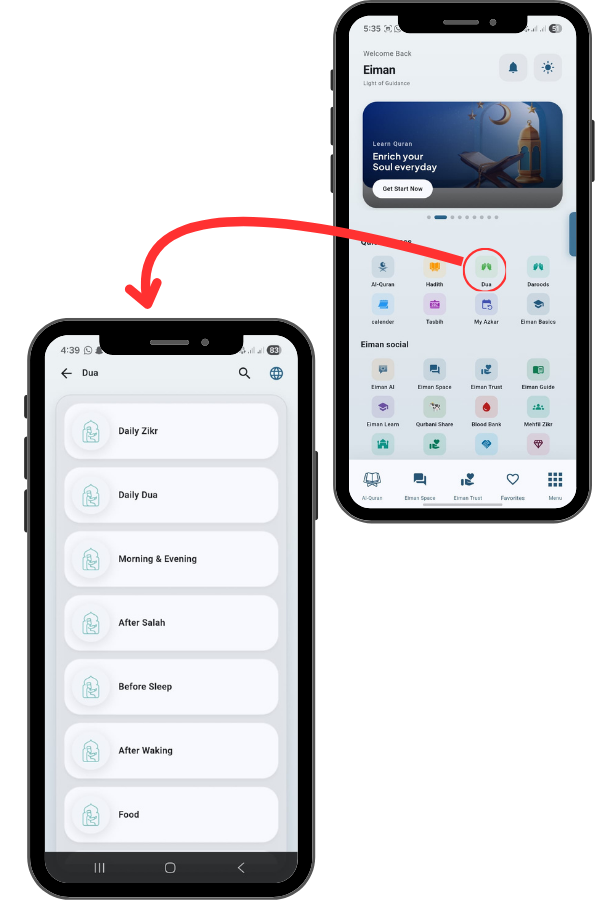
Go back to main menu.
Tap on the Dua icon to open a comprehensive
list of supplications categorized for your daily
needs.

20
21

Exploring Categories

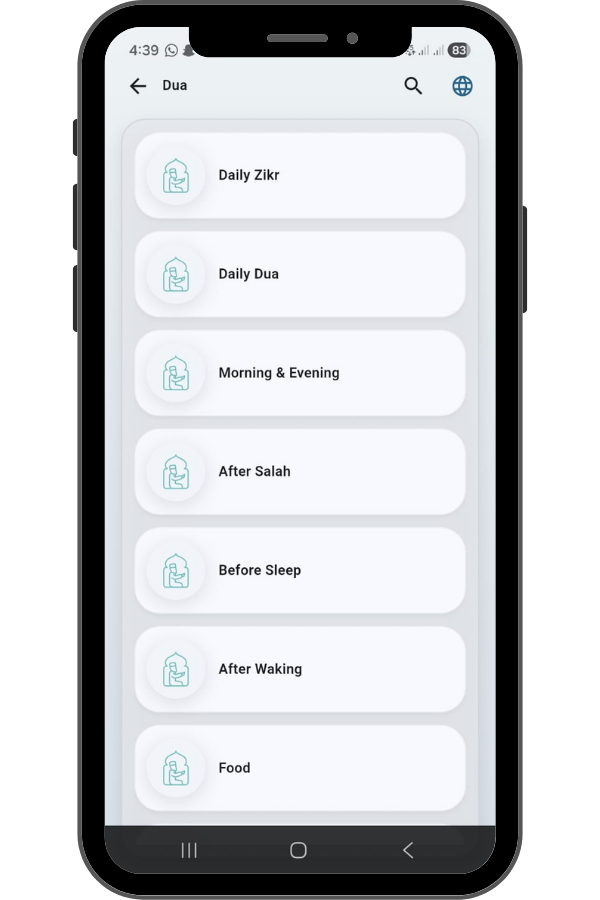
Scroll through the list.
Here you will find Dua organized by occasion. You have options like Daily
Zikr, Daily Dua, Morning & Evening Adhkar, After Salah, Before Sleep,
After Waking, and even Dua for Food and Travel.

Changing Interface Language

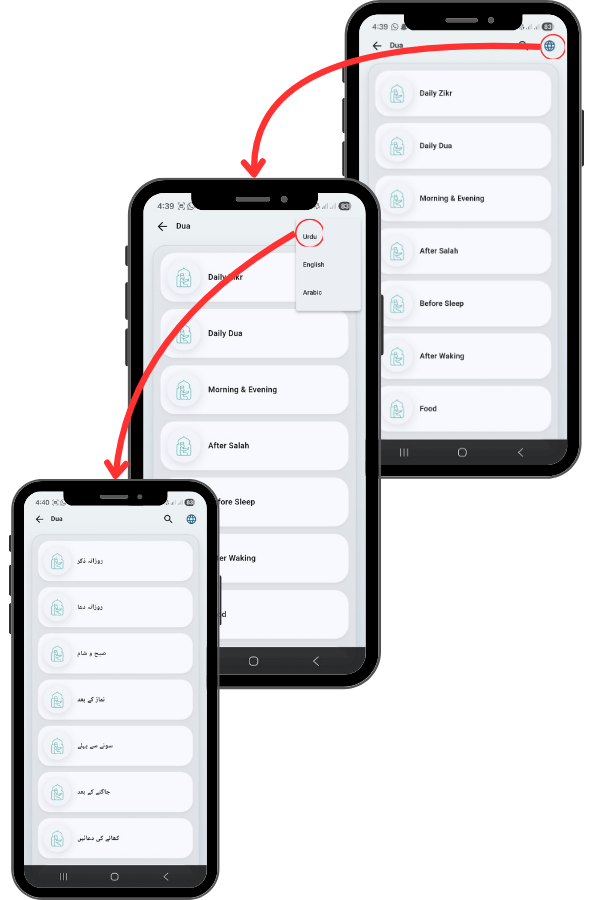
Tap the Globe Icon in the top right corner. Select your prefered
language
If you prefer reading the categories in Urdu, tap the Globe icon at the
top right. You can switch the interface language between English,
Urdu, and Arabic. As you can see, the entire list instantly translates to
Urdu.

22
23

Dua Interface

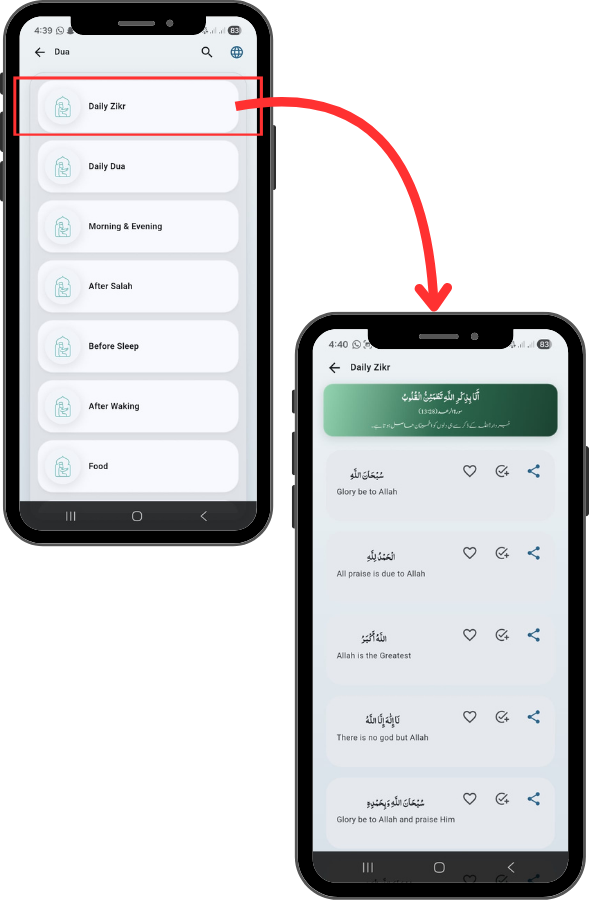
Let’s tap on Daily Zikr. This screen displays
common remembrances like SubhanAllah and
Alhamdulillah. Each entry shows the Arabic text
at the top and the English translation below it for
easy understanding.

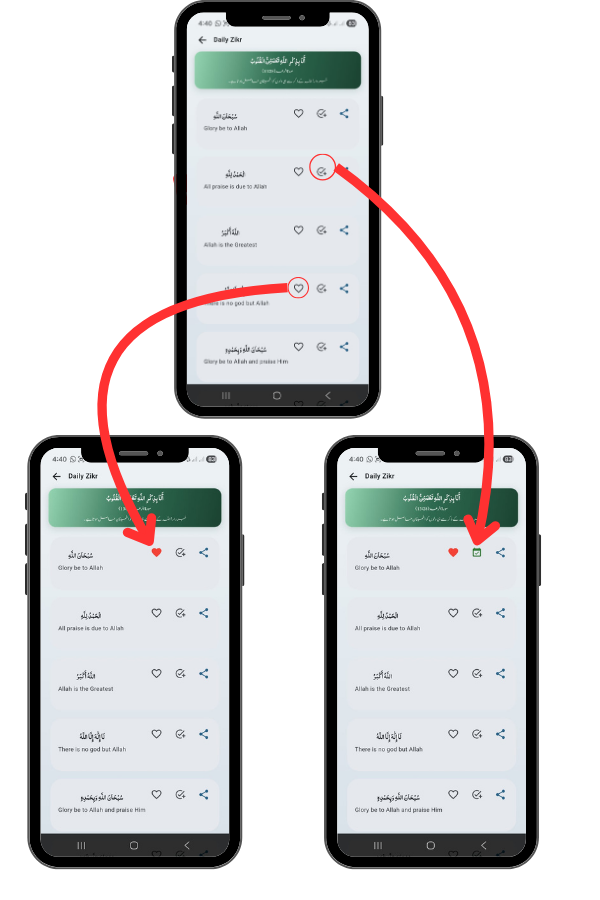
Using Action Icons (Favorite & Share)

Next to each Zikr, you have three useful icons:
Heart: Tap this to add the Zikr to your Favorites for quick
access later. You’ll see it turn red when saved.
Check/Circle: This likely adds it to a counter or daily
routine.

24
25

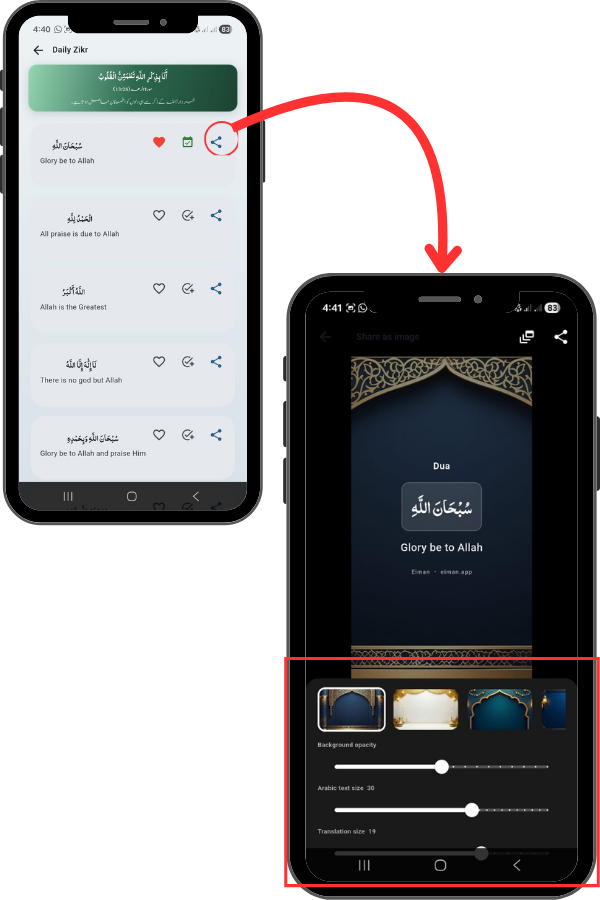
Creating Beautiful Image Cards

Tap the Share icon (three connected dots) next to the Zikr.
If you want to share this Zikr on social media or WhatsApp
status, tap the Share icon. Instead of just sending text, the app
opens a ‘Share as Image’ editor. Here, you can customize the
look:
Background: Choose from different Islamic patterns and
colors.
Opacity: Adjust the brightness of the background.
Text Size: Separate sliders let you resize the Arabic text and
the Translation independently to make it perfectly readable.

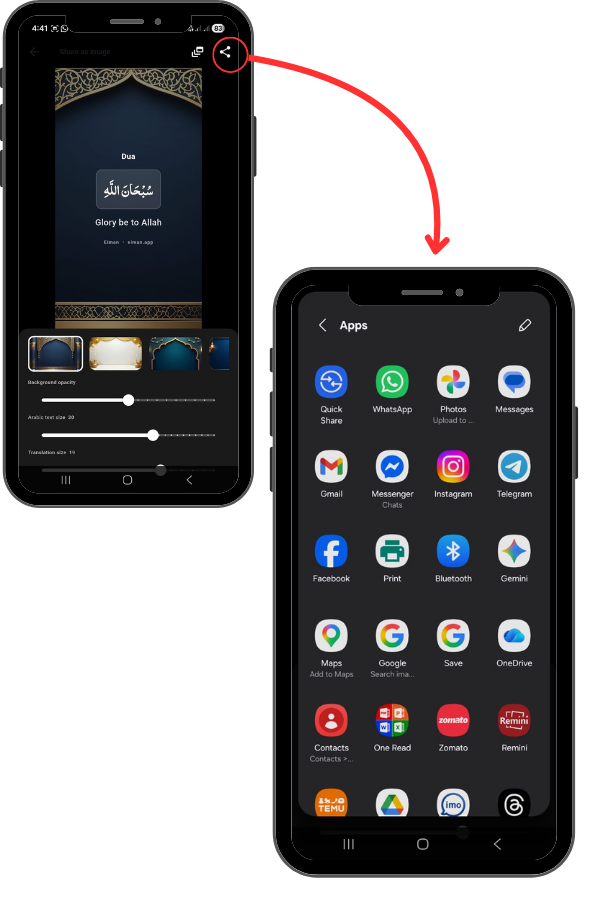
Sending the Image

Tap the Share icon at the top right of the image
editor.
Once your image looks perfect, tap the Share
icon at the top right corner. This opens your
phone’s sharing menu. You can now send this
beautiful card directly to WhatsApp, save it to
your Photos, or post it on Instagram and
Facebook.

26